
If you’ve been searching for how to fix mouse double clicking, you already know how frustrating this small glitch can be. You click once to select a file, and suddenly it opens twice. You try to place your cursor in a document, and instead it selects an entire word. A single click somehow registers as two, and it throws off everything from casual browsing to serious work like editing spreadsheets or gaming.
The good news is that this is one of the most common mouse problems out there, and in most cases, it’s fixable without buying a new mouse. Sometimes the fix is a simple software setting; other times, it’s a worn-out hardware component that needs attention. This guide walks you through every possible cause and solution, from the quickest checks to more advanced fixes, so you can get your mouse working reliably again.
Table of Contents
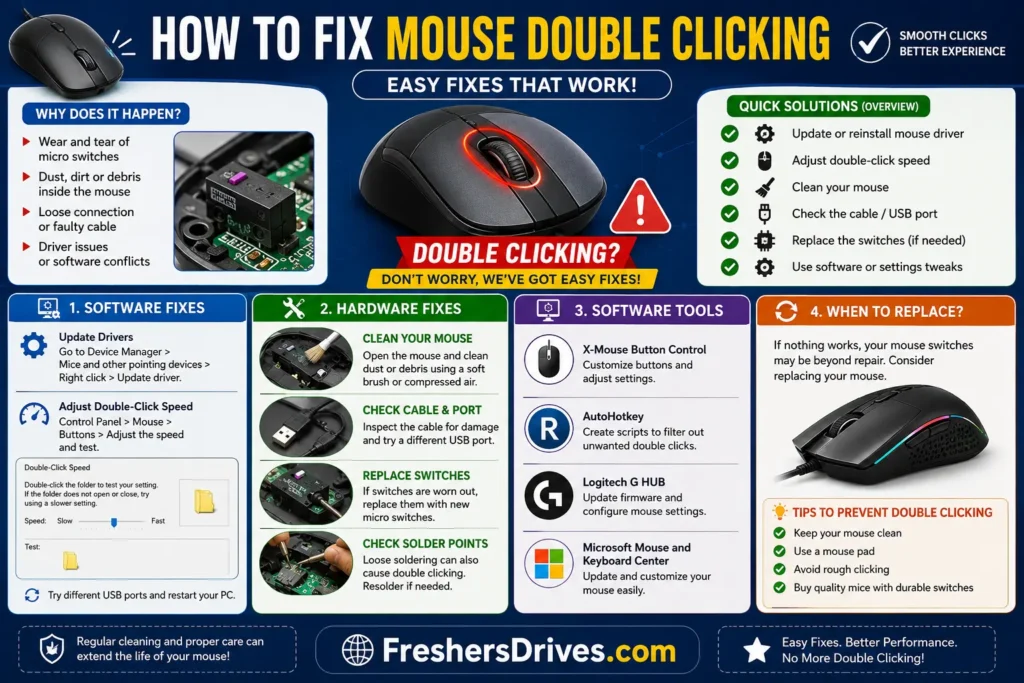
What Causes Mouse Double Clicking?
Before jumping into fixes, it helps to understand why this happens in the first place. Mouse double-clicking issues generally fall into two categories: software-related causes and hardware-related causes.
Software Causes
- Double-click speed settings set too fast or misconfigured
- Outdated or corrupted mouse drivers
- Conflicting third-party mouse software or utilities
- Operating system bugs following an update
Hardware Causes
- Worn-out micro-switch inside the mouse (the most common cause, especially in mice older than 1–2 years)
- Dust or debris interfering with the switch mechanism
- A loose or degraded switch spring, which causes the switch to “bounce” and register two clicks instead of one
- Faulty USB connection causing signal interference
Identifying whether your issue is software or hardware related will save you a lot of time, since the fix for each is quite different.
Quick Checks Before You Start Troubleshooting
Before diving into detailed fixes, run through these quick checks:
- Test the mouse on another computer. If the double-clicking happens on a different system too, it’s almost certainly a hardware issue with the mouse itself.
- Test a different mouse on your computer. If a different mouse works fine, the problem is with your original mouse, not your computer.
- Check if it happens in all applications or just one. If double-clicking only occurs in a specific app, the issue may be software-related rather than hardware-related.
- Clean the mouse buttons. Sometimes dust buildup around the button itself, not the internal switch, causes clicking issues. A quick clean can rule this out immediately.
These simple checks help you decide whether to focus on software settings or consider hardware repair/replacement.
Software Fixes for Mouse Double Clicking
If your quick checks point toward a software issue, try these fixes in order.
1. Adjust the Double-Click Speed Setting
Most operating systems have a double-click speed setting that determines how quickly two clicks need to happen to be registered as a “double-click” versus two separate single clicks. If this setting is too sensitive, a single click can sometimes be misinterpreted.
- On Windows, this is found in Control Panel > Mouse > Buttons tab > Double-click speed.
- On Mac, this is found in System Settings > Trackpad or Mouse > Click speed.
Try adjusting this slider to a slower setting and test if the issue persists.
2. Update or Reinstall Mouse Drivers
Outdated or corrupted drivers are a common software cause of erratic clicking behavior.
- Open Device Manager (Windows) or check for software updates in System Settings (Mac).
- Locate your mouse under “Mice and other pointing devices.”
- Right-click and select Update driver, or uninstall the device and restart your computer to let the system reinstall a fresh driver automatically.
3. Remove Conflicting Mouse Software
If you’ve installed custom mouse software from the manufacturer (common with gaming mice), outdated or buggy versions of this software can sometimes cause erratic click behavior. Try:
- Updating the manufacturer’s software to the latest version
- Temporarily uninstalling the software to see if the issue disappears
- Resetting any custom button configurations back to default
4. Disable Fast Startup (Windows Only)
In some cases, Windows’ Fast Startup feature can cause driver conflicts after a restart, leading to erratic mouse behavior. Disabling this feature under Control Panel > Power Options > Choose what the power buttons do can sometimes resolve intermittent issues.
Also Read: Lo Shu Grid Calculator: Meaning, Chart & How to Use
Hardware Fixes for Mouse Double Clicking
If software fixes don’t resolve the issue, the problem is likely with the mouse’s internal hardware — specifically, the micro-switch behind the click button.
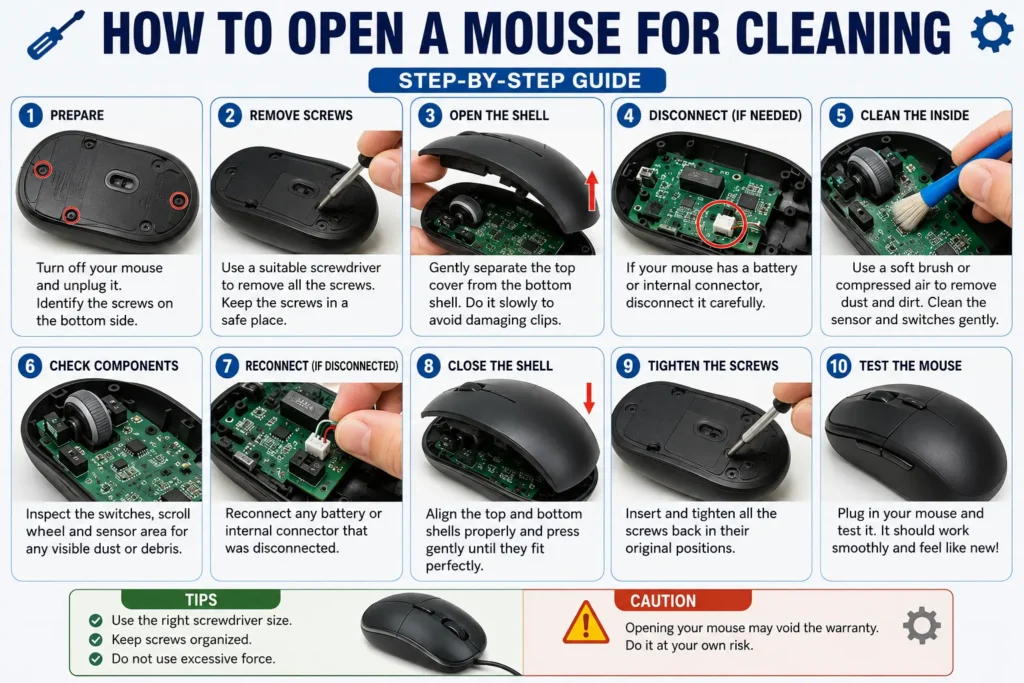
1. Clean the Mouse Internally
Dust and debris can sometimes interfere with the switch mechanism. If you’re comfortable opening your mouse:
- Unplug the mouse (or remove the batteries if wireless).
- Remove the screws, usually located under the mouse’s feet/pads.
- Carefully open the shell and use a can of compressed air or a soft brush to clean around the switches.
- Reassemble and test.
2. Bend or Adjust the Switch Contacts
For candidates comfortable with basic electronics, gently bending the metal contact leaf inside the micro-switch (using tweezers) can sometimes restore proper single-click function by tightening the connection. This is a temporary fix and should be done carefully, ideally by someone with prior experience handling small electronics.
3. Replace the Micro-Switch
The most durable hardware fix is replacing the worn-out micro-switch entirely. This involves:
- Opening the mouse as described above.
- Desoldering the old switch from the circuit board.
- Soldering in a new, compatible micro-switch (widely available online for a small cost).
- Reassembling the mouse and testing.
This requires basic soldering skills and tools, but it’s a cost-effective way to extend the life of an otherwise good mouse, especially higher-end gaming or ergonomic mice that are expensive to replace.
Fixing Double-Click Issues on Windows
Here’s a consolidated Windows-specific approach:
- Go to Settings > Devices > Mouse and check for any additional mouse-specific options provided by your manufacturer.
- Open Control Panel > Mouse > Buttons tab and adjust the double-click speed slider to a slower setting.
- Open Device Manager, locate your mouse, and update or reinstall the driver.
- Run the built-in Hardware and Devices Troubleshooter (search for it in the Windows search bar) to let Windows automatically detect and fix common mouse-related issues.
- If using a wireless mouse, try replacing the batteries or re-pairing the USB receiver, since low battery power or connection instability can sometimes cause erratic clicking.
Fixing Double-Click Issues on Mac
For Mac users, the process is slightly different:
- Go to System Settings > Mouse (or Trackpad) and adjust the click speed setting.
- Check for macOS software updates under System Settings > General > Software Update, since Apple periodically patches input device bugs.
- Reset the SMC (System Management Controller) and NVRAM/PRAM, which can sometimes resolve peripheral-related glitches on Mac.
- If using a Bluetooth mouse, try unpairing and re-pairing the device under System Settings > Bluetooth.
When to Replace Your Mouse
If you’ve tried both software and basic hardware fixes and the double-clicking issue persists, it may simply be time to replace the mouse. Consider replacement if:
- The mouse is more than 2–3 years old with heavy daily use
- You’ve already attempted cleaning and driver updates without success
- Opening and repairing the switch isn’t something you’re comfortable doing
- The issue is affecting your productivity or work significantly
When choosing a replacement, look for mice that explicitly advertise high-durability switches (often rated for tens of millions of clicks), since this directly addresses the most common cause of double-clicking issues over time.
Common Mistakes to Avoid
- Assuming it’s always a software issue. Many users spend significant time adjusting settings when the actual problem is a worn-out switch that needs hardware attention.
- Opening the mouse without unplugging it first. Always disconnect the mouse (or remove batteries) before attempting any internal cleaning or repair.
- Using excessive force when cleaning internally. Micro-switches are delicate components; applying too much pressure while cleaning can damage them further.
- Ignoring driver updates. Skipping this simple step means missing an easy fix that resolves the issue in many software-related cases.
- Ordering the wrong replacement switch. If attempting a switch replacement, make sure the new switch matches the specifications (force rating and size) of the original for proper button feel and function.
- Not testing after each fix. Skipping the testing step after each attempted fix makes it hard to know which specific change actually resolved the issue.
Expert Tips to Prevent Future Double-Clicking
- Clean your mouse regularly. A quick wipe-down and occasional internal dusting can prevent debris buildup that leads to switch issues over time.
- Avoid excessive force when clicking. Clicking harder than necessary accelerates wear on the internal switch mechanism.
- Keep drivers updated proactively. Rather than waiting for issues to appear, periodically check for driver and firmware updates for your mouse.
- Invest in a mouse with high-durability switches if you use your computer heavily. Switches rated for 20 million clicks or more tend to last significantly longer under daily use.
- Use a mouse pad. This reduces unnecessary strain on the mouse’s internal components caused by excessive friction or uneven surfaces.
How to Fix Mouse Double Clicking (Easy Fixes)
Clean the Mouse Button
Dust and debris can cause accidental double clicks. Gently clean around the mouse buttons using compressed air or a soft brush.
Adjust Double-Click Speed
Open Mouse Settings → Additional Mouse Settings → Buttons tab, and lower the double-click speed to see if the issue is resolved.
Update or Reinstall Mouse Drivers
Open Device Manager, locate your mouse, and update the driver. If needed, uninstall the device and restart your PC.
Check Battery or USB Connection
For wireless mice, replace the battery. For wired mice, try a different USB port to rule out connection issues.
Replace a Worn-Out Switch
If the problem persists, the mouse switch may be failing. Consider repairing the switch or replacing the mouse.
Frequently Asked Questions
1. Why does my mouse click once but register as two clicks?
This is most commonly caused by a worn-out micro-switch inside the mouse, though it can occasionally be caused by an overly sensitive double-click speed setting in your operating system.
2. Can I fix mouse double clicking without opening the mouse?
Yes, in many cases. Adjusting the double-click speed setting, updating drivers, and removing conflicting mouse software can resolve the issue without any physical repair.
3. Is mouse double clicking a hardware or software problem?
It can be either. Testing the mouse on a different computer, or testing a different mouse on your computer, helps determine which type of issue you’re dealing with.
4. How do I know if my mouse switch is worn out?
If the double-clicking issue persists across multiple computers and after all software fixes have been tried, a worn-out switch is the most likely cause.
5. Can dust cause a mouse to double-click?
Yes. Dust and debris can interfere with the switch mechanism, sometimes causing erratic clicking behavior that clears up after cleaning.
6. Is it worth repairing an old mouse instead of replacing it?
If you’re comfortable with basic soldering and the mouse is otherwise in good condition (especially higher-end or ergonomic mice), repairing the switch can be a cost-effective option compared to buying a new one.
7. Does updating mouse drivers actually help with double-clicking?
Yes, outdated or corrupted drivers can cause erratic click registration, so updating or reinstalling them is one of the simplest and most effective software fixes.
8. Why does my wireless mouse double-click more than my wired mouse?
Wireless mice can experience signal interference or battery-related power fluctuations, which can occasionally cause erratic click behavior in addition to the standard hardware causes.
9. Can a double-clicking mouse damage my files or work?
Yes, indirectly an unintended double-click can open files unexpectedly, select unwanted text, or trigger accidental actions in software, particularly in professional or gaming contexts where precision matters.
10. How long does a typical mouse switch last before wearing out?
Standard mouse switches are often rated for around 5 to 10 million clicks, while higher-durability switches used in gaming mice can be rated for 20 million clicks or more, translating to roughly 1–3 years of typical daily use before issues start appearing.
Conclusion
Mouse double-clicking is a frustrating but usually fixable issue. Start with the simple software checks — adjusting your double-click speed setting and updating your drivers — before moving on to hardware-focused fixes like cleaning or switch replacement. In most cases, you won’t need to replace your mouse entirely, but if the issue persists after trying these steps, upgrading to a mouse with more durable switches is a worthwhile investment for long-term reliability.
If this guide helped resolve your issue, consider sharing it with others facing the same frustrating problem.
Regular Drive Updates: Click Here